Interactive Measurement
The Interactive Measurement tab groups commands for interactive measurement.
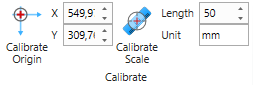
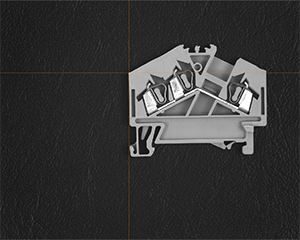
The Calibrate Origin command is used to set the origin of an image.
The (x,y) pixel coordinates of the origin can either be typed into the controls on the ribbon or dragged with the rectangular crosshair cursor that appears when the command button is pressed.
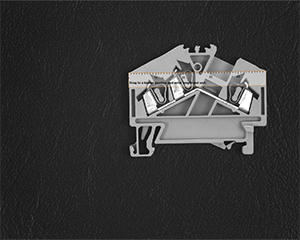
The Calibrate Scale command sets the scale for interactive measurements. In order to calibrate the scale you align the scale tool with some known length in the image and enter the length and unti into the controls.
The Overlay group contains commands for graphical overlays.
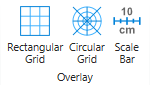
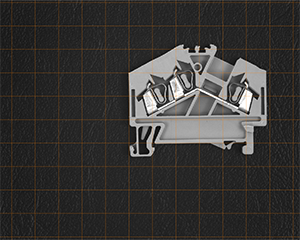
The Rectangular Grid command overlays a rectangular grid that respects the origin.
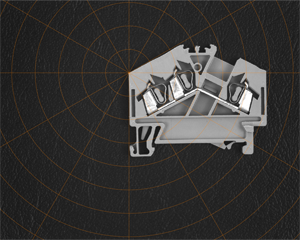
The Circular Grid command overlays a circular grid that respects the origin.
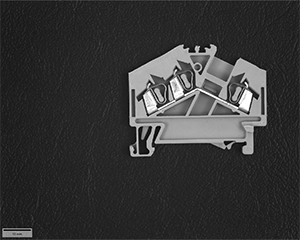
The Scale Bar command overlays a scale bar in the lower left area of the image that visualizes the scale.
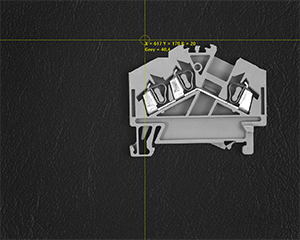
The Picker command adds an interactive tool that allows to pick grayscale or color values at some position from an image.

The position and the radius of the picking area can be dragged interactively.
The Measure group contains commands for interactive measurements.
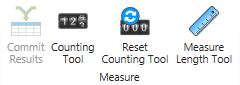
The Counting Tool helps with interactive counting. Click the left mouse button when the tool is selected to set a visual marker. If you hold the Ctrl key while clicking, a new group is started.
The Reset Counting Tool resets and counts and markers in all counting groups.
When done with counting, you can use the Commit Results command to write the measurement into a text file (CSV-File) that you can then store to disk.
The Measure Length tool displays a scale that you can align with a position to measure. Once the alignment is perfect (the two top corners are the hit spots for moving), you can use the Commit Results command (or the space key) to write the measurement into a text file.